Installation
System Requirements
Your computer must meet the system requirements to use Artec Studio Lite.
To sum up, in order to use Artec Studio Lite easily and smoothly, you need to:
Check that your computer meets the minimum and recommended specifications
Install all necessary drivers and updates for your hardware
Ensure stable power supply and sufficient disk space for project data
User Account
To install Artec Studio Lite and keep it up to date, register for a free account at my.artec3d. In addition, the website allows you to track all your Artec devices and products.
Your account at my.artec3d will be valid for all Artec services.
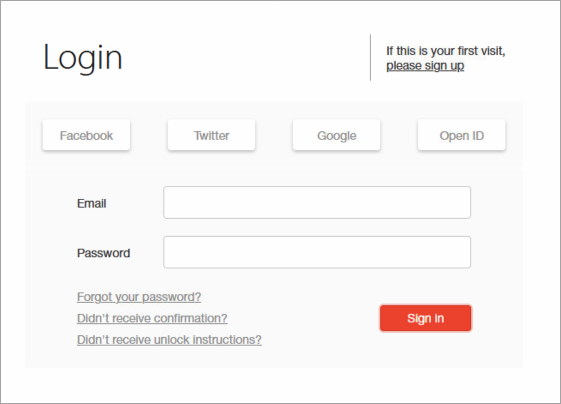
Figure 1 my.artec3d welcome screen.
To register, follow these steps:
Go to my.artec3d and click please sign up.
Fill in all the fields in the registration form (by clicking Next) and click Create account.
Receive a registration email that contains a confirmation link.
Click the link or copy it to your browser to confirm your registration and go straight to your my.artec3d account.
Running Artec Installation Center
To use Artec Installation Center, first ensure that your computer is connected to Internet. If necessary, you can install and activate Artec Studio Lite on another computer later. Also, make sure that you already have a my.artec3d account; if not, see User Account.
Log into your my.artec3d account and download Artec Installation Center. The link for the Artec Installation Center executable is available in the My software section.
After downloading, open the folder containing the executable file and run it. Follow the on-screen installation instructions. Once Artec Installation Center is installed, you will see a dialog requesting your email address and password. Use your my.artec3d account to log in as Figure 2 shows.
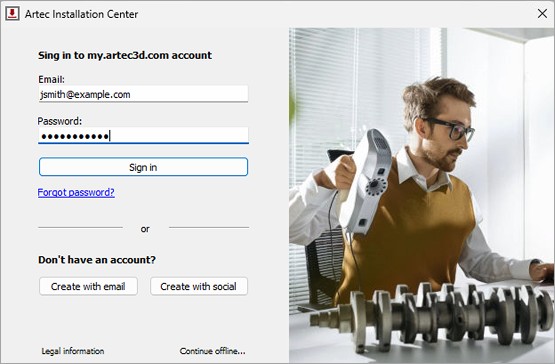
Figure 2 Authentication for Artec Installation Center
Logging Out and Switching Accounts
You may need to change my.artec3d account. Artec Installation Center displays the current user name in the top-right corner.
To log out of Artec Installation Center:
Click Log out.
Enter another user’s email and password in the window that opens.
Click Sign in.
Artec Studio Lite Installation
There are two ways to download and install Artec Studio Lite:
Through Artec Installation Center (either during the installation process or by clicking Install in the application)
From my.artec3d—log in to the website, go to the My software page, and download the executable file
If you download the executable file, run it to begin installation; otherwise, click Install in Artec Installation Center. To continue with the installation, click Next and proceed to the license agreement. After reviewing the agreement, accept it by clicking Yes, and follow the next steps.
If you have not yet installed the Artec Installation Center, a login dialog will appear. If you are not connected to the Internet, refer to Offline Activation for instructions on activating Artec Studio Lite without an Internet connection.
If the computer on which you are installing Artec Studio Lite has not yet been linked to your account, an activation confirmation message will appear.
When the installation is complete, the installer will prompt you to launch Artec Studio Lite.
Offline Activation
If the computer on which you are installing Artec Studio Lite lacks an Internet connection for security or other reasons, you may use the offline activation procedure to activate the software.
Note
Copies of Artec Studio Lite activated offline cannot be deactivated, so use this option only if absolutely necessary.
For offline activation, you need the following:
Another computer connected to the Internet
Artec Studio Lite installation package (preferably, download it from my.artec3d)
Flash drive or another storage device to transfer files from the computer with Internet access to the one where you’ll install Artec Studio Lite
Installation and activation procedure:
Start Artec Studio Lite installation.
During installation the login/password dialog will appear. Click Continue offline…
Click the Activate offline button in the pop-up window
In the offline-activation dialog, click Save… and save generated Activation ID file to a flash drive or other storage medium
Log into your my.artec3d account and open My software page using the Internet-connected computer
Find Artec Studio Lite and click on it. A new page will appear
Click the Activate application offline link then the Select file button and specify the Activation ID file path. Next, click Activate
A new dialog will allow you to download an Offline Activation Data file; save it to the flash drive
Return to the computer on which you are installing Artec Studio Lite. Click Activate and Continue and specify the Offline Activation Data file
Once you complete all the steps described above, your copy of Artec Studio Lite will be activated.
Deactivation
Note that deactivation is only possible for computers on which you activated Artec Studio Lite online as Artec Studio Lite Installation describes. Artec Studio Lite installations activated offline cannot be deactivated.
Note
The number of deactivations may be limited, so deactivate Artec Studio Lite only if you absolutely must move it from one computer to another.
To deactivate a license on your computer, follow these steps:
Make sure the computer is connected to the Internet.
Go to Control Panel → Uninstall Applications and click on Artec Studio Lite. The uninstallation process will start.
In the dialog that appears, select the I understand. Deactivate Artec Studio checkbox.
Click Next to complete the uninstallation.